 Markdown
The Sprocket Markdown web part displays a Markdown (.md) file from a SharePoint document library as formatted content on your page. Use it for team guides, project updates and technical documentation. Maintain the content in the source file and choose how it appears in the web part.
Quick start
Watch the overview to see how to connect a Markdown file and display it on your SharePoint page, or follow the step-by-step setup instructions below.
Try the sample
Download the sample Markdown file and upload it to a SharePoint document library. It includes a feature table, callouts, a checklist, code, a diagram, a formula and expandable FAQs, ready to use when you configure the web part.
Features
- Format content with headings, bold and italic text, lists, links and images.
- Organise information with tables, task lists and an automatic table of contents.
- Highlight advice with callouts and place supporting information in expandable sections.
- Display code with syntax highlighting and a copy button.
- Render Mermaid diagrams and mathematical notation.
- Choose Full or Reading content width.
- Control whether links open in a new tab, and show the web part title and panel independently.
Add Markdown to a page
- Upload a
.mdfile to a SharePoint document library. You can use the downloadable sample to get started. - Select Edit at the top right of your SharePoint page.
- Select the + icon where you want to add the web part.
- Search for Markdown and select Markdown - Sprocket 365.
- Select Configure, then expand Data Source in the configuration panel.
- Choose the Site URL, Web URL, Document Library and Markdown File, in that order.
- Review the content on the page and adjust the Display settings if needed.
- Select Publish or Republish when the page is ready.
Readers need permission to access the selected Markdown file. Adding the web part does not change the file's permissions.
Data Source settings
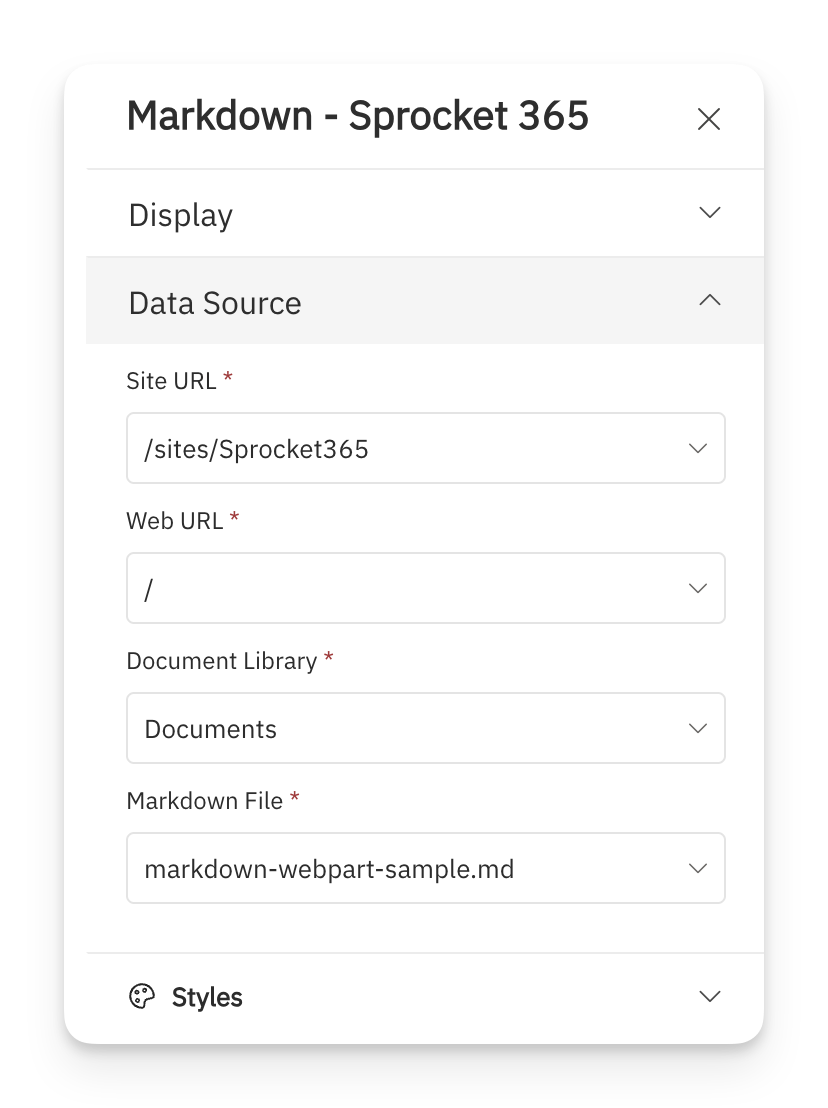
| Field | Description |
|---|---|
| Site URL | Select the site collection containing your document library. |
| Web URL | Select the site or subsite containing the library. |
| Document Library | Select the library that stores your Markdown file. |
| Markdown File | Select the .md file to display. Files in folders include their folder path so you can distinguish files with the same name. |
Changing the site or library clears the selections that depend on it. Select the remaining fields again to connect the web part to the correct file.
Display settings
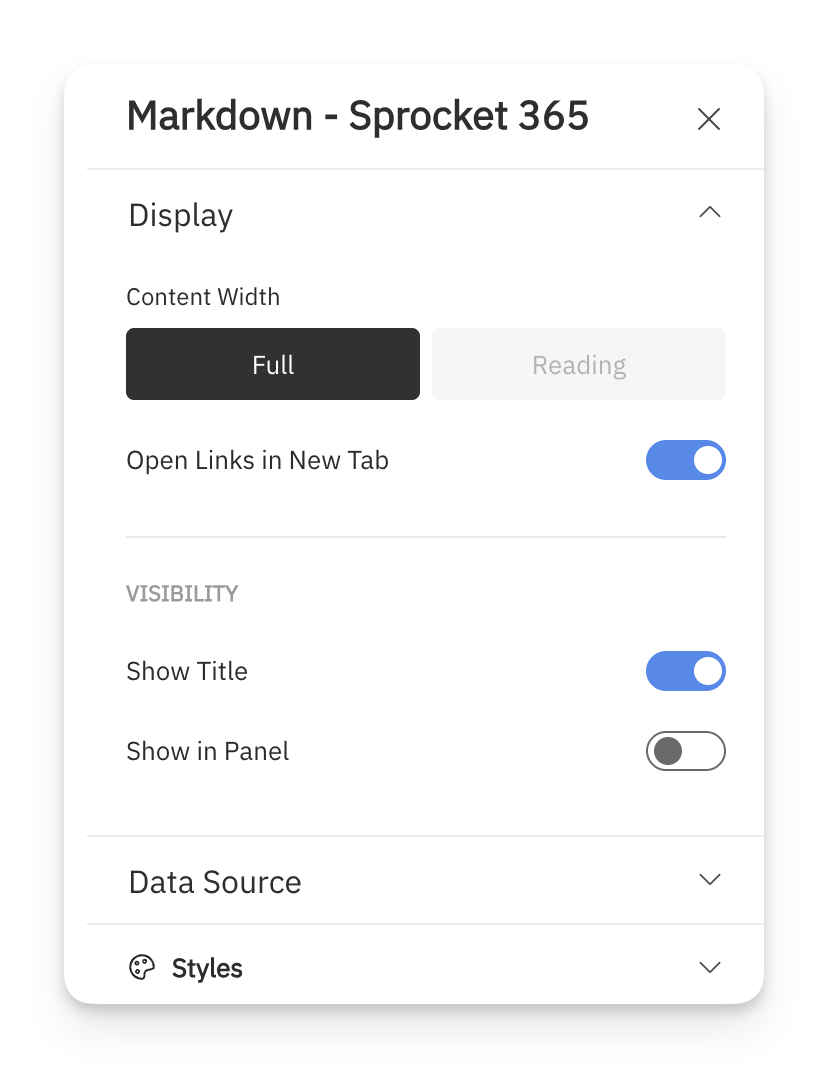
| Field | Description |
|---|---|
| Content Width | Full uses the available web part width. Reading limits the content to a narrower column, suited to longer articles. Defaults to Full. |
| Open Links in New Tab | Open links with an http:// or https:// address in a new tab. On by default. Links to headings within the document stay on the page. |
| Show Title | Display the web part heading. On by default. Edit the heading directly on the page while in edit mode. |
| Show in Panel | Display the web part inside a styled panel. Off by default. |
Write your Markdown content
Create or edit the source file in a text or Markdown editor, then save it to the selected document library. The following examples show syntax you can use in the file.
Headings, tables and checklists
Use headings to divide a document into sections, tables to compare information and task lists to record progress.
## Project update

**Owner:** Workplace team

| Milestone | Status |
| --- | --- |
| Content prepared | Complete |
| Page reviewed | In progress |

- [x] Prepare the content
- [ ] Review and publish the page
Task list checkboxes display the state recorded in the file. Readers cannot use them to update the source document from the web part.
To generate a table of contents from your headings, add [toc] on its own line in the file.
Callouts and expandable sections
Callouts draw attention to useful advice. Expandable sections let readers reveal supporting details when needed.
> [!TIP]
> Keep your guide in one Markdown file so it is easy to maintain.

:::details[Who can read this content?]
Readers need access to the source file in SharePoint.
:::
Code blocks
Place code inside triple backticks and add a language name, such as javascript, for syntax highlighting. A Copy code button lets readers copy the example.
```javascript
const message = "Welcome to the team";
console.log(message);
```
Diagrams
Use a fenced code block with the language mermaid to turn a text description into a diagram.
```mermaid
flowchart LR
    A[Write content] --> B[Review]
    B --> C[Publish]
```
Mathematical notation
Wrap inline maths in single dollar signs, such as $x^2$. Use double dollar signs on separate lines for a formula displayed on its own line.
$$
\text{Completion} = \frac{2}{5} \times 100 = 40\%
$$
Links and images
Use standard Markdown syntax for links and images. Use a full URL for an image stored in SharePoint, and make sure readers have access to it.
[Team resources](https://example.com/resources)

Replace these example addresses with your own links.
Update the content
- Open the selected
.mdfile in your document library, or edit a local copy in your preferred editor. - Save the updated file back to the same location, replacing the existing file if you edited a local copy.
- Reload the SharePoint page to view the updated content.
The web part reads from the file; it does not provide an inline Markdown editor. If you move or rename the file, select it again under Data Source.
Styles
The Styles section provides optional settings for custom styling.
| Field | Description |
|---|---|
| Custom CSS | Add custom CSS for the web part. |
| Custom CSS Class | Add a CSS class to the web part's root element. |
FAQs
Why is my file missing from the list?
Check the selected site and document library, confirm that you can access the file, and make sure its extension is .md.
Why does the web part say I don't have permission?
You need access to the source file as well as the SharePoint page. Ask the file owner to check its permissions.
What if the selected file cannot be found?
It may have been moved, renamed or deleted. Open Data Source and select the correct file again.
Why is the web part blank?
An empty source document displays no content to readers. In edit mode, the web part shows This document is empty.
Do I need to republish the page after editing the Markdown file?
Changes to the source file do not require republishing the page. Reload the page to see the updated content. Publish or republish when you change the page or web part configuration.